
Why Complete Uninstallation Matters
A simple uninstall often leaves behind temporary files, registry entries, and hidden folders. Over time, these leftovers can slow down your computer, cause conflicts with new programs, and waste gigabytes of space. A thorough removal keeps your PC clean and running smoothly.
Quick Answer: How to Uninstall Programs Completely on Windows
Go to Settings > Apps > Installed apps, select the program, and click Uninstall. Then use a free tool like Revo Uninstaller or manually delete remaining folders in C:\Program Files and AppData. This removes 95%+ of leftovers that normal uninstallers miss.
Method 1: Uninstall via Windows Settings (Recommended for Most Users)
This is the simplest and safest starting point on Windows 11 and 10. Press Windows key + I to open Settings, go to Apps > Installed apps. Find the program, click the three dots, and select Uninstall. Follow the prompts. For stubborn programs, restart your PC afterward.
Method 2: Using Control Panel
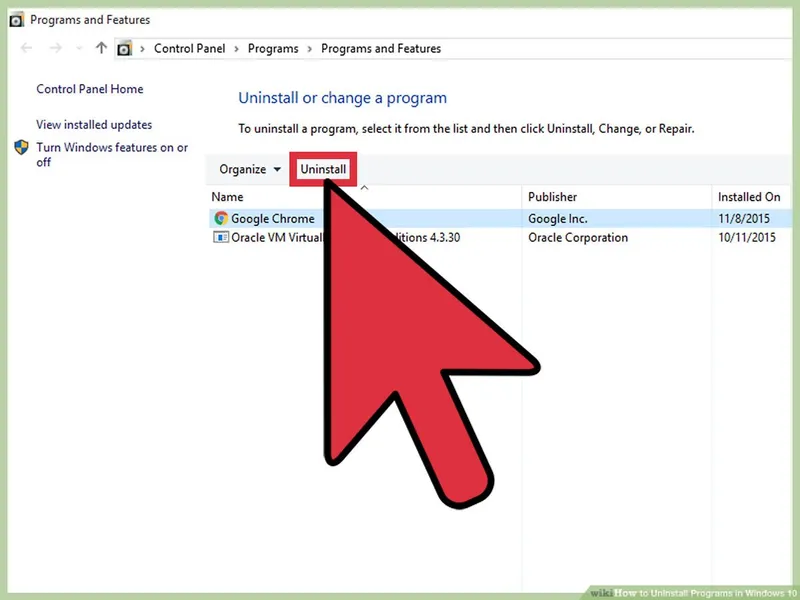
Search for “Control Panel” in the Start menu, go to Programs and Features. Right-click the unwanted program and choose Uninstall/Change. This method works well for older programs that don’t appear in the modern Settings app.
Method 3: Best Third-Party Uninstaller Tools
Revo Uninstaller Free is excellent for deep cleaning. It scans for leftovers after the normal uninstall and removes registry keys and folders automatically. Other good free options include Geek Uninstaller and BCUninstaller. These tools can recover several gigabytes of space that standard uninstallers leave behind.
Manual Cleanup – Removing Leftover Files and Folders
After uninstalling, check these locations: - C:\Program Files and C:\Program Files (x86) - C:\Users\YourName\AppData\Roaming and Local - C:\ProgramData Delete any folders with the program name. Be careful not to delete system folders.
Cleaning Registry Entries (Advanced Users Only)
Press Windows + R, type regedit, and press Enter. Search (Ctrl + F) for the program name and carefully delete related keys. Always back up the registry first. This step is optional but helps remove stubborn traces.
Best Practices for Clean Uninstalls
- Always restart your PC after uninstalling
- Use a reputable free uninstaller for stubborn programs
- Check disk space before and after to see real savings
- Avoid random registry cleaners that can cause problems
FAQs – How to Uninstall Programs Completely on Windows
Why doesn’t the normal uninstall remove everything?
Developers often leave configuration files and registry entries so settings can be restored if you reinstall later.
Is it safe to delete leftover folders?
Yes, as long as they belong to the uninstalled program and are not system folders.
Can leftover files slow down my PC?
Yes. Accumulated junk from dozens of programs can take up several gigabytes and occasionally cause conflicts.
Conclusion – Keep Your Windows PC Clean
Learning how to uninstall programs completely on Windows helps maintain speed, free up storage, and avoid future issues. Combine the built-in Settings method with a good free uninstaller tool for the best results.
For more Windows maintenance tips, check how to install software safely on Windows step by step, how to update software automatically on PC, and essential software every computer user should have.
Data Sources & References
Microsoft official support documentation, Revo Uninstaller guides, and real-world testing on Windows 10/11 systems.